Expected use case is that this data be used as source for the Speckle Visualization for PowerBI (https://github.com/specklesystems/speckle-powerbi-visuals)
Data Connector and 3D Viewer Visual for PowerBI platform
</h3>
<p align="center"><b>Speckle</b> is the data infrastructure for the AEC industry.</p><br/>
Speckle Power BI Data Connector lets you easily get data from Speckle into Power BI reports and visualizations. You can access and analyze data from various AEC apps (like Revit, Archicad, Grasshopper, and more) and open-source files (IFC, STL, OBJ, etc.) into Power BI with ease.
Speckle’s connection to Power BI consists of two parts:
- **Data Connector** fetches the data you uploaded from AEC apps to Speckle.
- **3D Visual** allows you to see those models in 3D within Power BI.
This repo is home to our Power BI connector. The Speckle Server provides all the web-facing functionality and can be found [here](https://github.com/specklesystems/Server).
`src/powerbi-data-connector` contains all the code for the Data connector.
`src/powerbi-visual` contains all the code for 3D Visual.
# Installation
Speckle connector can be installed directly from [Manager for Speckle](https://speckle.systems/download/). Full instructions for [installation](https://speckle.guide/user/powerbi/installation.html) and [configuration](https://speckle.guide/user/powerbi/configuration.html) can be found on our docs.
# Using 3D Visual
3D Visual can be imported as any other Power BI custom visual.
1. Navigate to the Visualization Pane.
2. Click the three dots (…) and select “Import a visual from a file”.
3. Go to `Documents/Power BI Desktop/Custom Visuals` and import `Speckle 3D Visual.pbiviz` file.
4. Speckle cube will appear in the Visualization pane.
For more on how to use the visual, [check our docs](https://speckle.guide/user/powerbi-visual/introduction.html).
# Usage
To get started with Power BI connectors, please take a look at the [documentation](https://speckle.guide/user/powerbi/introduction.html) and extensive [tutorials](https://www.youtube.com/playlist?list=PLlI5Dyt2HaEsZHG2WJ75WIM0Brx6VHT2S) published.
# **Developing & Debugging**
We encourage everyone interested to debug/hack/contribute/give feedback to this project.
## **Setup**
### **Install PowerQuery SDK**
Follow the instructions from the[official docs](https://docs.microsoft.com/en-us/power-query/installingsdk)
### **Build with Visual Studio**
Every time you build the connector, VisualStudio will copy the latest`.mez`connector file to the appropriate location. Just restart PowerBI to see the latest changes.
### **Debug**
You can start the PowerQuery connector in VisualStudio, this will open a standalone connector you can use for testing purposes.
We don't know of a way to debug the connector live in PowerBI, but we'd be happy to hear about it.
# About Speckle
What is Speckle? Check our 
@@ -32,8 +88,7 @@ What is Speckle? Check our ](https://speckle.xyz) ⇒ creating an account at our public server
- [](https://marketplace.digitalocean.com/apps/speckle-server?refcode=947a2b5d7dc1) ⇒ deploying an instance in 1 click
- [](https://app.speckle.systems) ⇒ creating an account at our public server
### Resources
@@ -42,56 +97,3 @@ Give Speckle a try in no time by:
- [](https://speckle.guide/dev/) reference on almost any end-user and developer functionality
This repo is the home to our Speckle 2.0 PowerBI project. The [Speckle Server](https://github.com/specklesystems/Server) is providing all the web-facing functionality and can be found [here](https://github.com/specklesystems/Server).
## Install
Go to the [Releases](https://github.com/specklesystems/speckle-powerbi/releases) page, downlad the `.mez` file of the latest release and copy it into the following folder in your computer:
```
YOUR_USER_FOLDER\Documents\Power BI Desktop\Custom Connectors\
```
If the folder doesn't exist, create it.
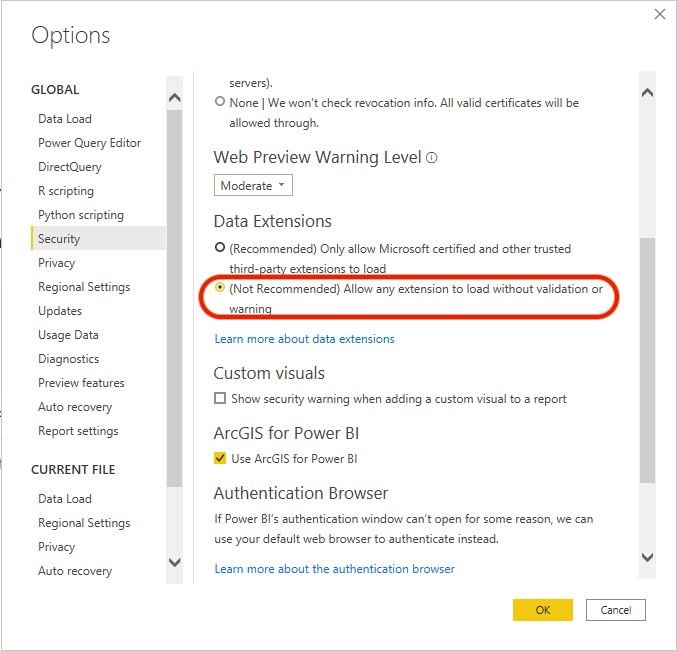
### Allow custom extensions to run
Go to `Settings -> Security -> Data Extensions` and activate the following option:
### Checking the connector is loaded
Now open PowerBI and you should see `Speckle (beta)` appear in the data source.
> More detailed instructions on how to use the connector will be added shortly!
### Current limitations
Chunked data currently is not automatically de-chunked when received, we are aware of this limitation and are working to resolve it!
## Developing & Debugging
We encourage everyone interested to debug / hack / contribute / give feedback to this project.
### Setup
#### Install PowerQuery SDK
Follow the instructions from the [official docs](https://docs.microsoft.com/en-us/power-query/installingsdk)
#### Build with Visual Studio
Every time you build the connector, VisualStudio will copy the latest `.mez` connector file to the appropriate location. Just restart PowerBI to see the latest changes.
#### Debug
You can start the PowerQuery connector in VisualStudio, this will open a standalone connector you can use for testing purposes.
We don't know of a way to debug the connector live in PowerBI, but we'd be happy to hear about it.
Source: "{#VisualDistPath}specklePowerBiVisual.{#Version}.pbiviz"; DestDir: "{#CustomVisualFolder}"; DestName: "SpecklePower BI 3D Visual.pbiviz";
; TODO: Including the thumbprint in the registry will enable this running in higher security environments.
; Currently blocked because of MakePQX.exe not being ready to work with online CSP's like Digicert Keylocker.
Reference in New Issue
Block a user
Blocking a user prevents them from interacting with repositories, such as opening or commenting on pull requests or issues. Learn more about blocking a user.
 Jedd Morgan